User Guide
Everything you need to know to get started with Airgap Voice.
Getting Started
Airgap Voice is a menu bar application that transcribes speech directly at your cursor — in any application. All processing runs locally on your Mac’s Apple Silicon GPU. No audio ever leaves your machine.
Requirements
- macOS 15 (Sequoia) or later
- Apple Silicon Mac (M1, M2, M3, M4 or later)
- Microphone access (built-in or external)
- Accessibility permission (for cursor text insertion)
First Launch
- Open Airgap Voice from your Applications folder
- Grant microphone and accessibility permissions when prompted
- The app icon appears in your menu bar
- Click the icon or use the keyboard shortcut to start recording
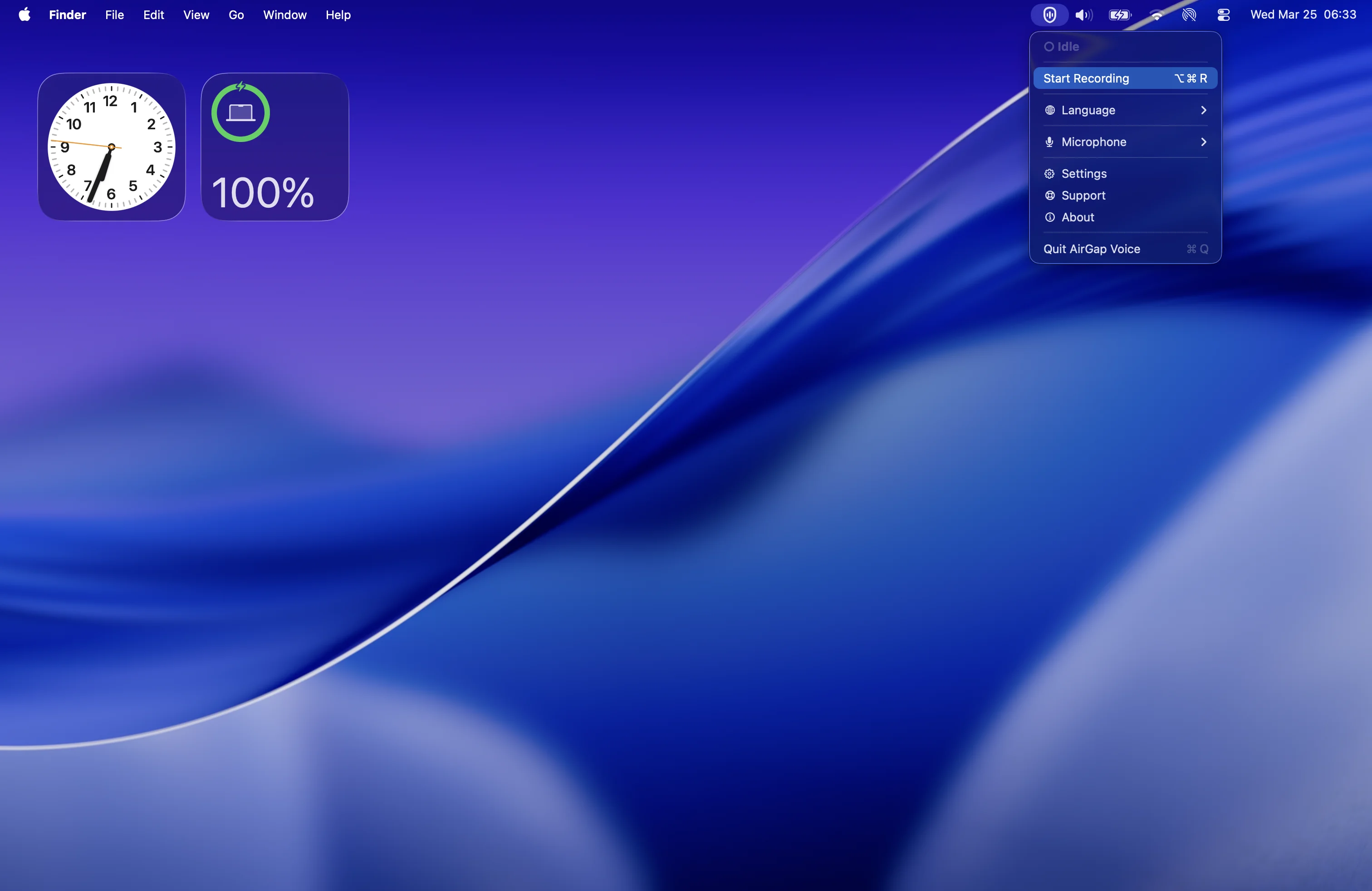
Main Menu
Click the Airgap Voice icon in the menu bar to open the main menu. From here you can start recording, change language, select a microphone, open settings, access support, or quit the application.
Recording
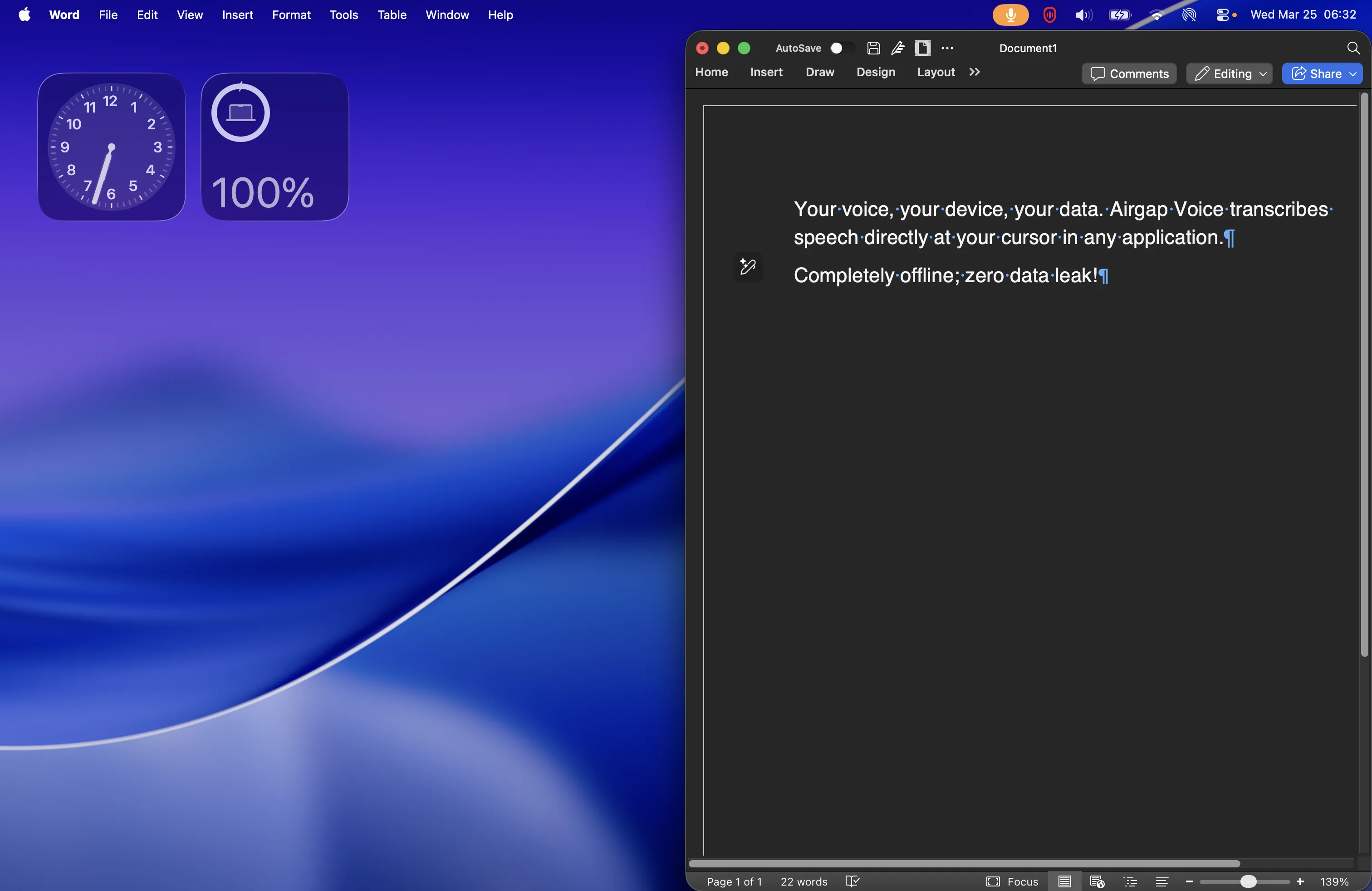
To start recording, click Start Recording in the menu or use the keyboard shortcut. The menu bar icon turns green to indicate active recording.
Speak naturally — Airgap Voice transcribes your speech in real time and inserts the text at your cursor position in whatever application is focused. When you’re done, click Stop Recording or use the shortcut again.
Tip: Place your cursor in the target application before starting a recording. The text will appear exactly where your cursor is.
Accessibility
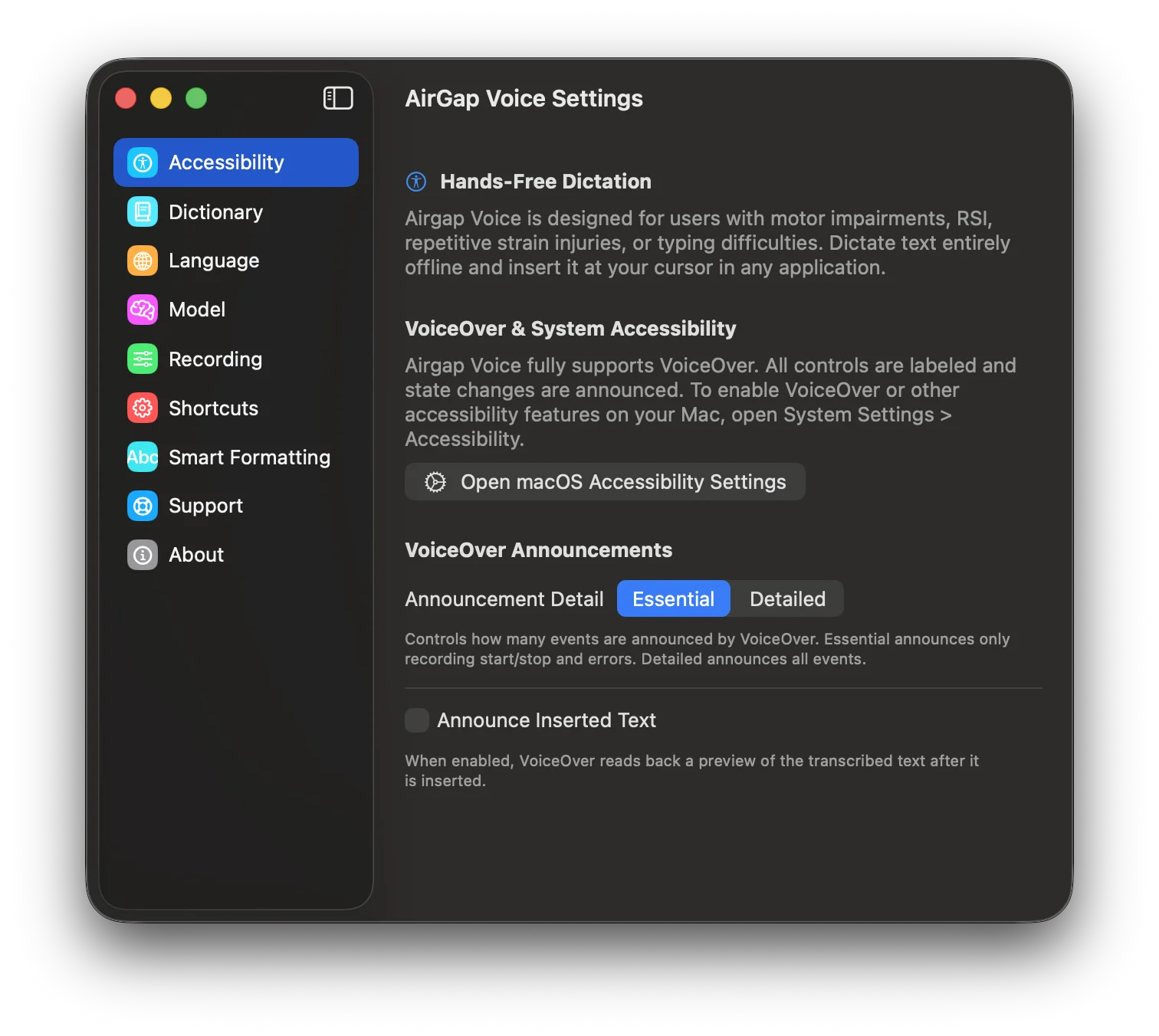
Airgap Voice is designed for users with motor impairments, RSI, repetitive strain injuries, or typing difficulties. Dictate text entirely offline and insert it at your cursor in any application.
VoiceOver & System Accessibility
Airgap Voice fully supports VoiceOver. All controls are labeled and state changes are announced. To enable VoiceOver or other accessibility features on your Mac, open System Settings > Accessibility.
VoiceOver Announcements
- Announcement Detail — Controls how many events are announced by VoiceOver. Essential announces only recording start/stop and errors. Detailed announces all events.
- Announce Inserted Text — When enabled, VoiceOver reads back a preview of the transcribed text after it is inserted.
Custom Dictionary
Add domain-specific terms to improve recognition accuracy. Custom vocabulary terms are used for vocabulary boosting during transcription, helping the model correctly recognize specialized terminology.
Toggle Enable Custom Vocabulary to activate the dictionary. Add terms using the text field at the bottom. Remove terms with the delete button next to each entry.
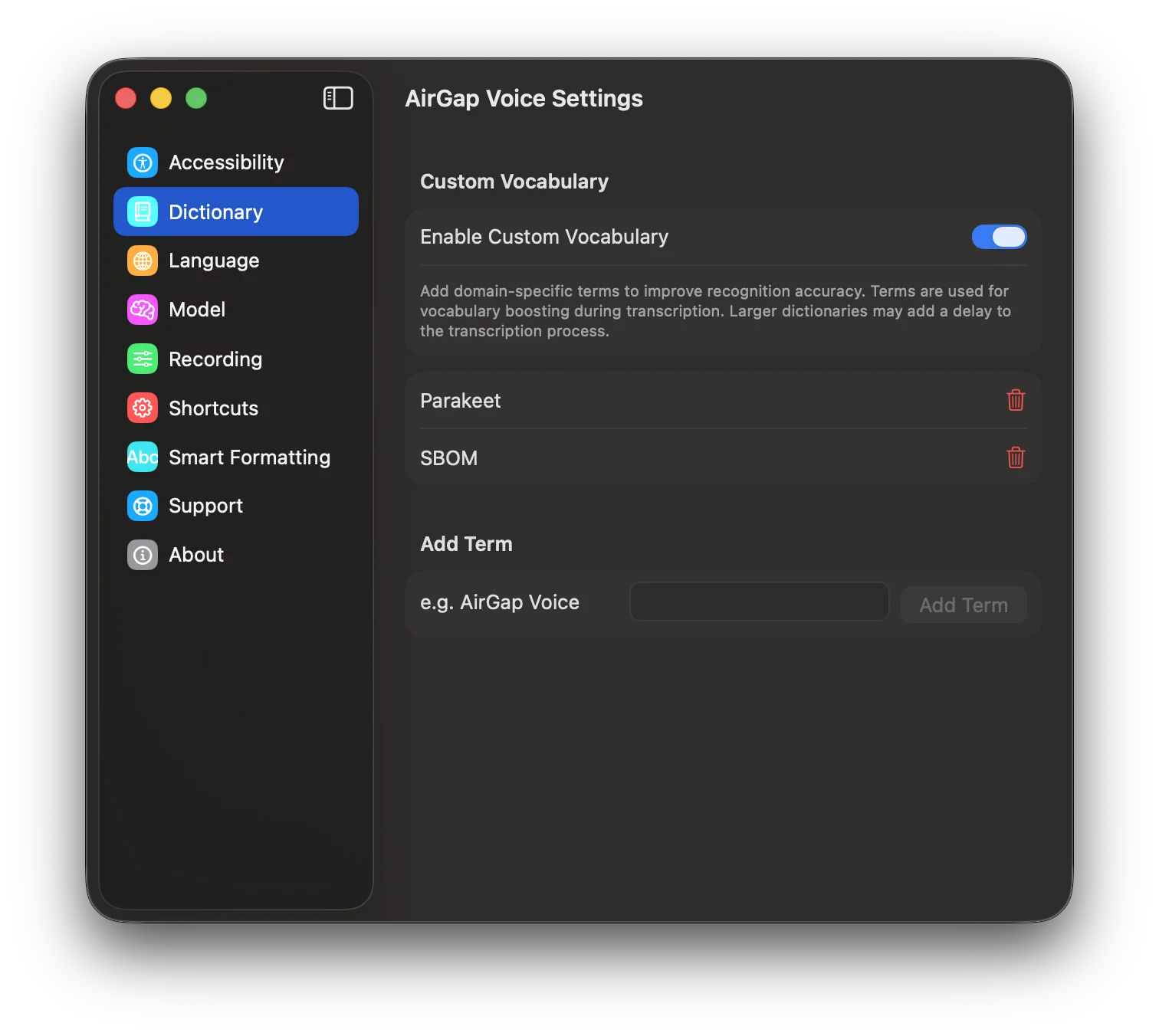
Note: Larger dictionaries may add a slight delay to the transcription process.
Language
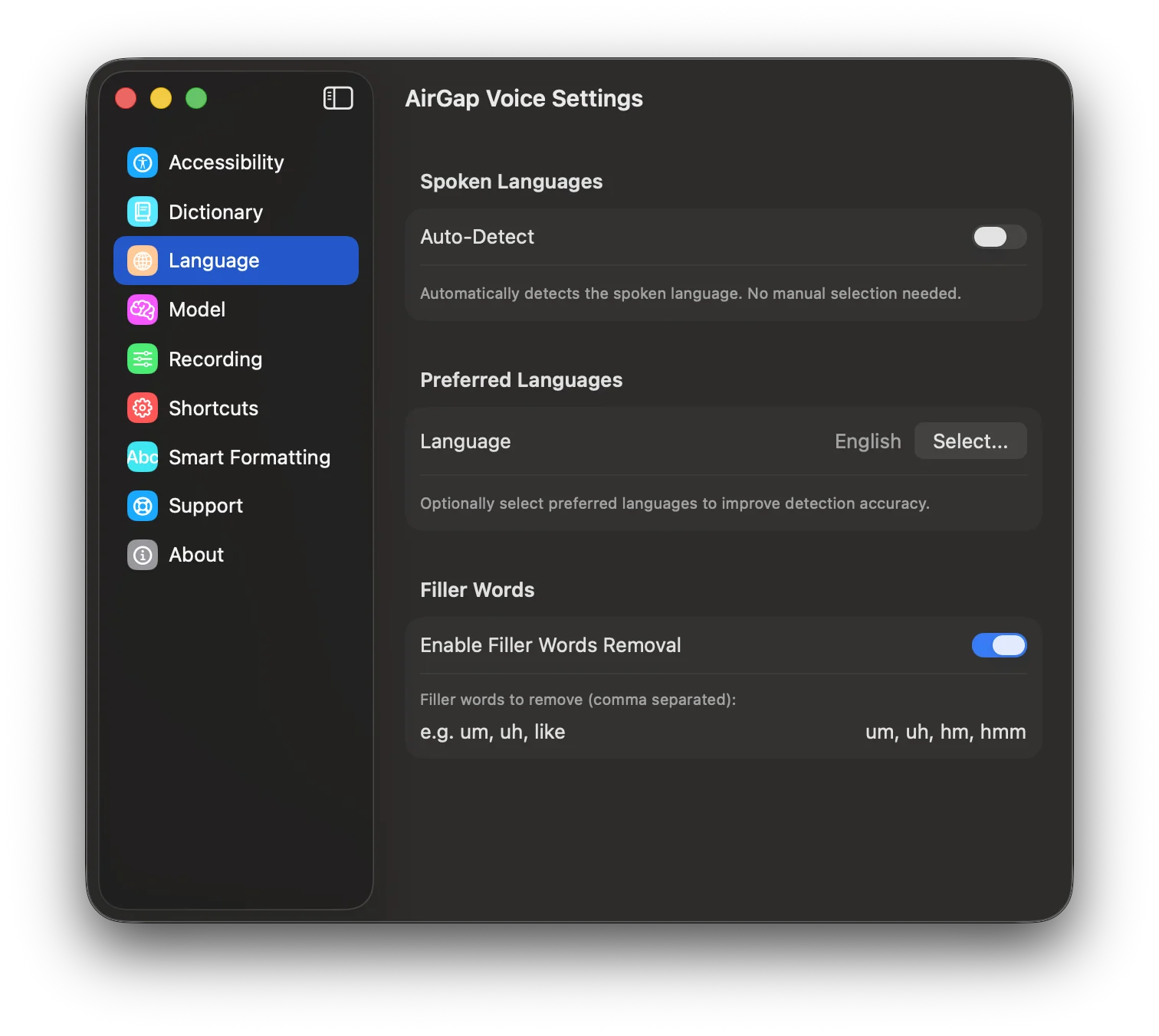
Configure spoken language detection, preferred languages, and filler word removal.
Auto-Detect
When enabled, Airgap Voice automatically detects the spoken language. No manual selection needed. For Asian languages such as Malay or Indonesian, disable auto-detect and select the language manually to ensure correct recognition.
Preferred Languages
Optionally select preferred languages to improve detection accuracy. This helps the model when multiple languages could match.
Filler Words
Enable filler word removal to automatically strip words like “um”, “uh”, “like”, “hmm” from your transcriptions. You can customize the list of filler words to remove.
Model
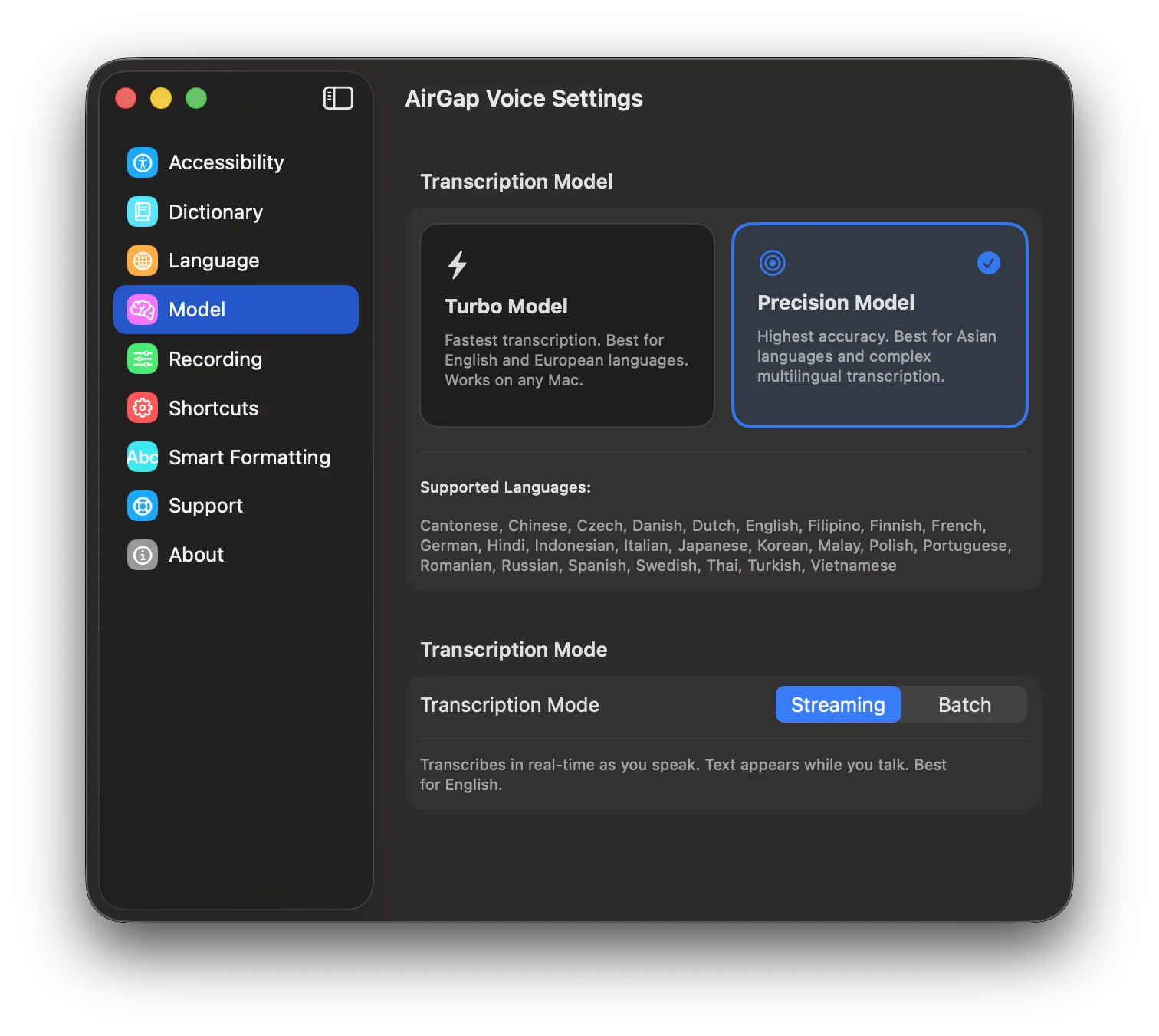
Choose between two transcription models and two transcription modes.
Turbo Model
Fastest transcription. Best for English and European languages. Works on any Mac.
Precision Model
Highest accuracy. Best for Asian languages and complex multilingual transcription.
Supported Languages
30 languages across both models. Turbo: Bulgarian, Croatian, Czech, Danish, Dutch, English, Finnish, French, German, Italian, Polish, Portuguese, Romanian, Russian, Slovak, Slovenian, Spanish, Swedish, Ukrainian. Precision: all Turbo languages except Bulgarian, Croatian, Slovak, Slovenian, Ukrainian — plus Cantonese, Chinese, Filipino, Hindi, Indonesian, Japanese, Korean, Malay, Thai, Turkish, and Vietnamese.
Transcription Mode
Streaming transcribes in real time as you speak. Text appears while you talk. Best for English. Batch records the full audio first, then transcribes after you stop. More accurate for non-English languages and longer dictation.
Recording Settings
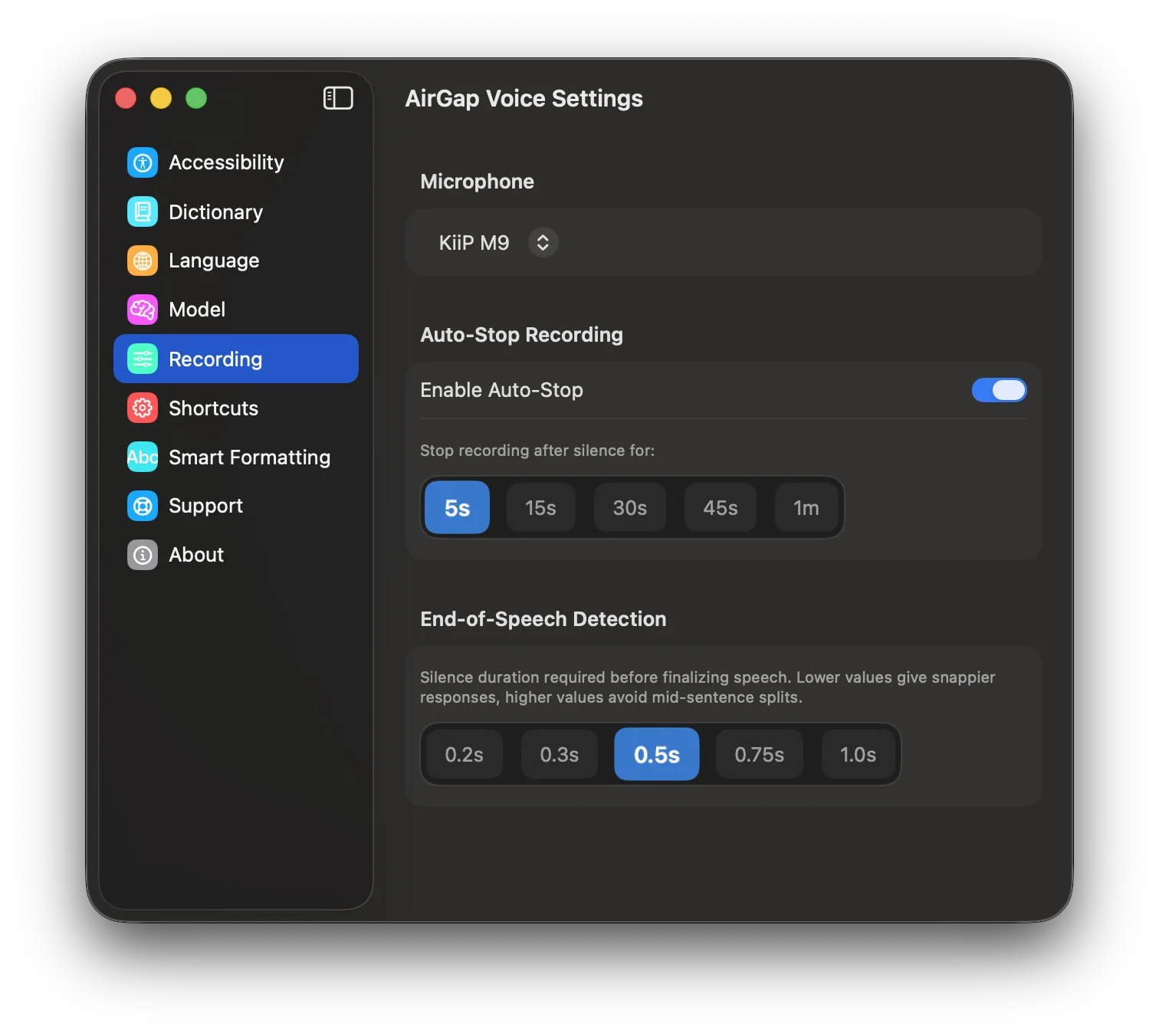
Configure microphone selection, auto-stop behavior, and end-of-speech detection.
Microphone
Select which microphone to use for recording. Supports built-in and external microphones.
Auto-Stop Recording
When enabled, recording automatically stops after a configurable silence duration. Choose from 5s, 15s, 30s, 45s, or 1 minute.
End-of-Speech Detection
Controls the silence duration required before finalizing speech. Lower values (0.2s) give snappier responses; higher values (1.0s) avoid mid-sentence splits. Default is 0.5s.
Shortcuts & Behavior
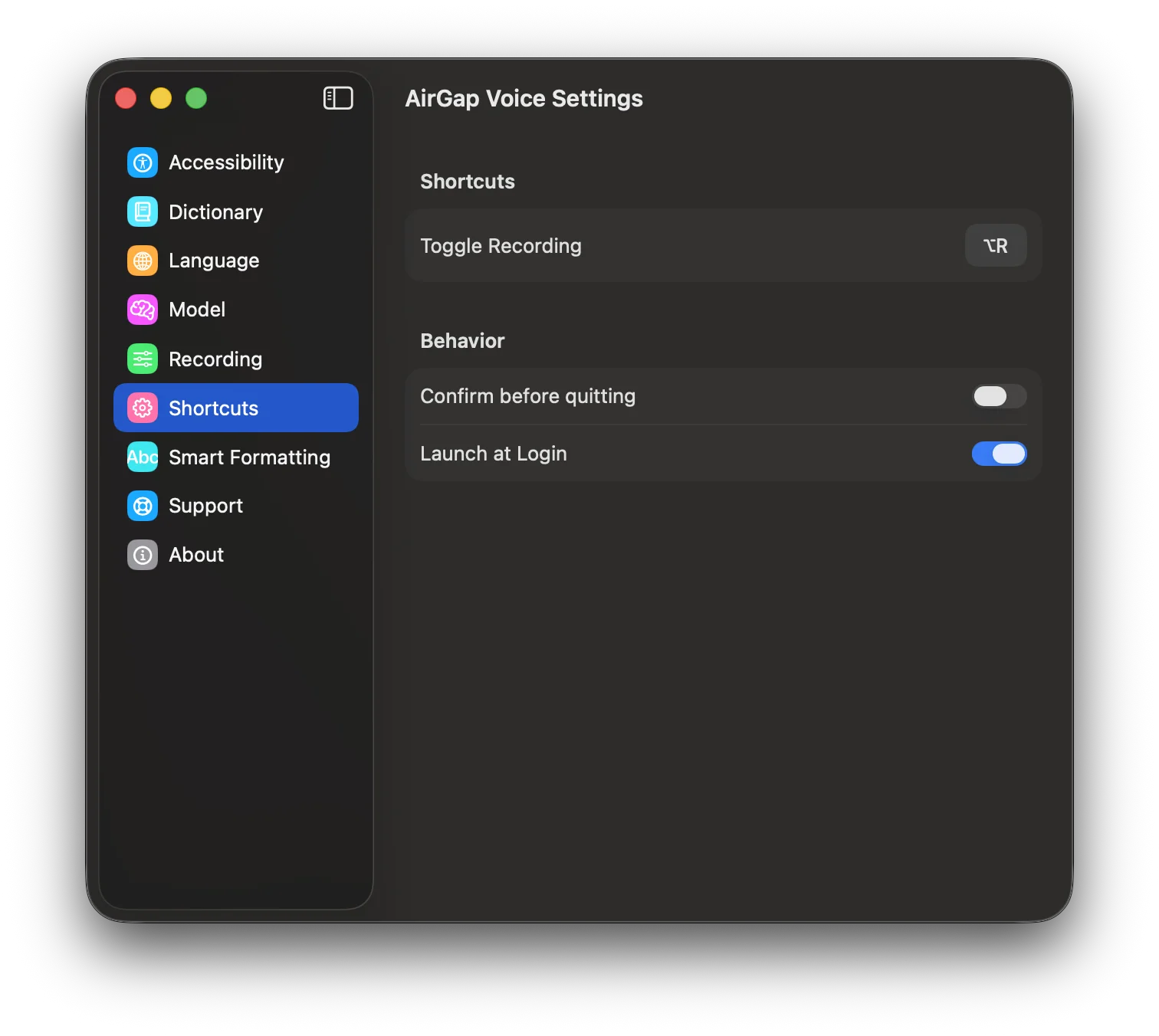
Configure keyboard shortcuts and application behavior.
Toggle Recording
Set a global keyboard shortcut to start and stop recording from any application. Default is ⌥R (Option + R).
Behavior
- Confirm before quitting — Shows a confirmation dialog before quitting the app.
- Launch at Login — Automatically starts Airgap Voice when you log in.
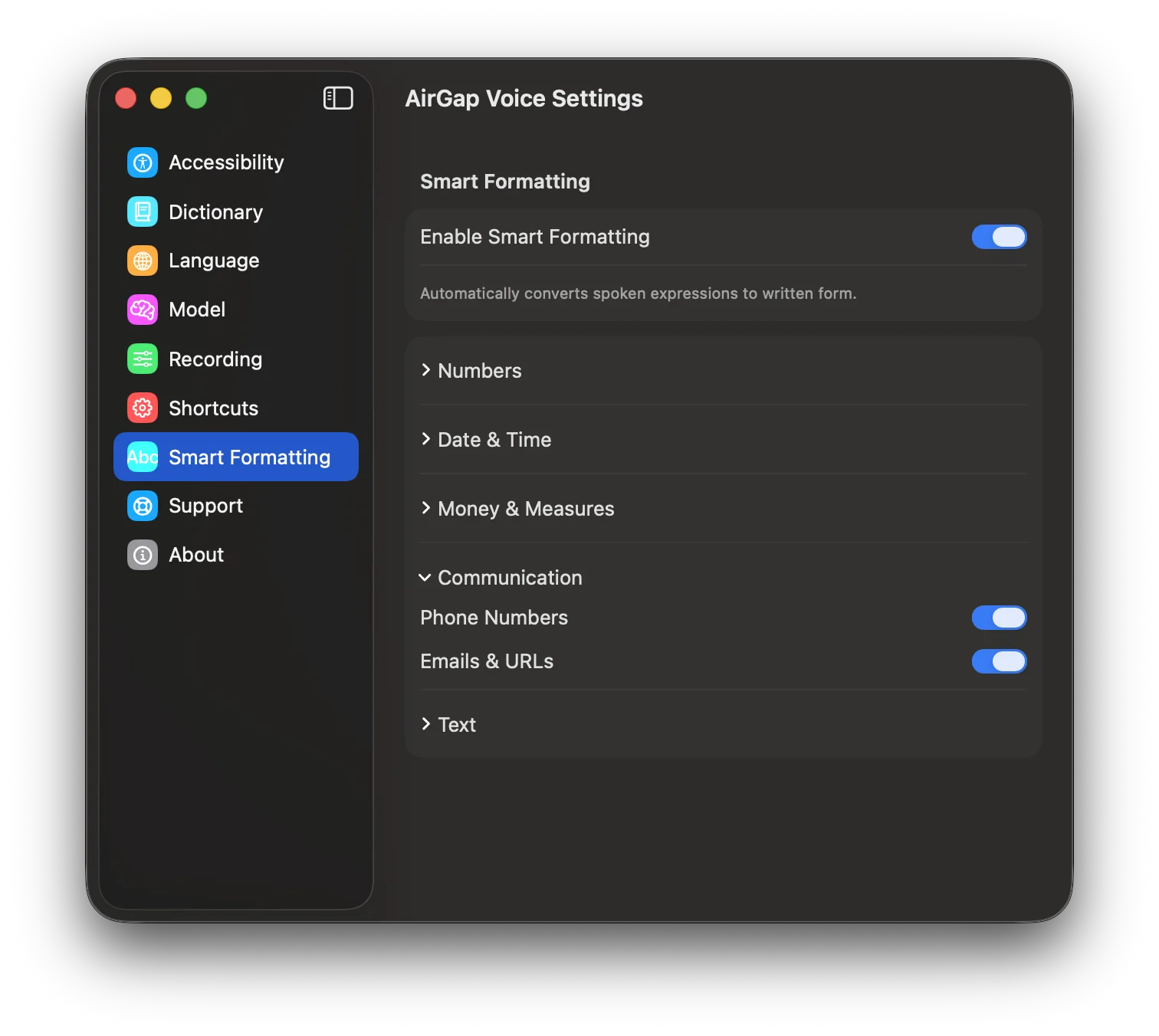
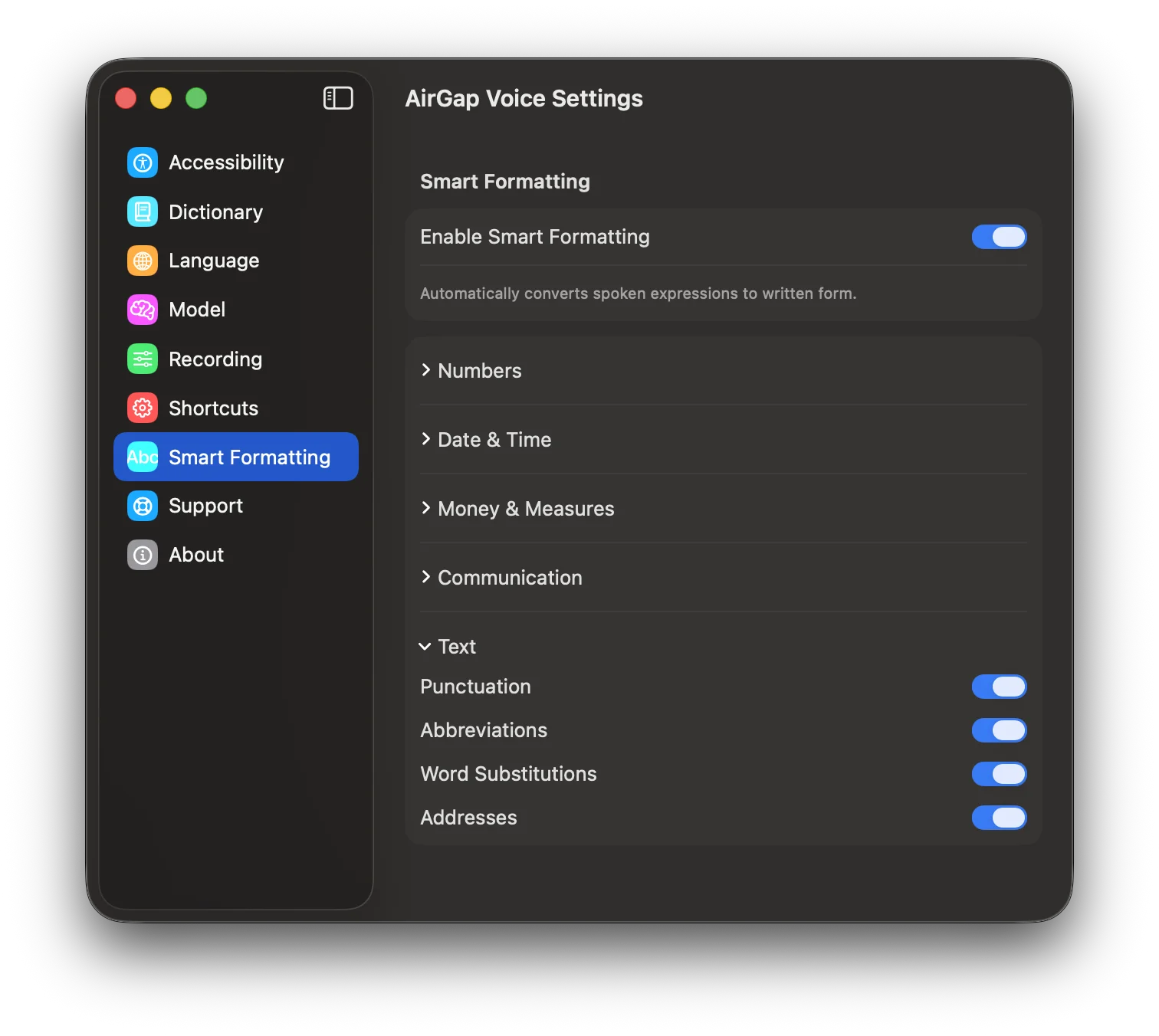
Smart Formatting
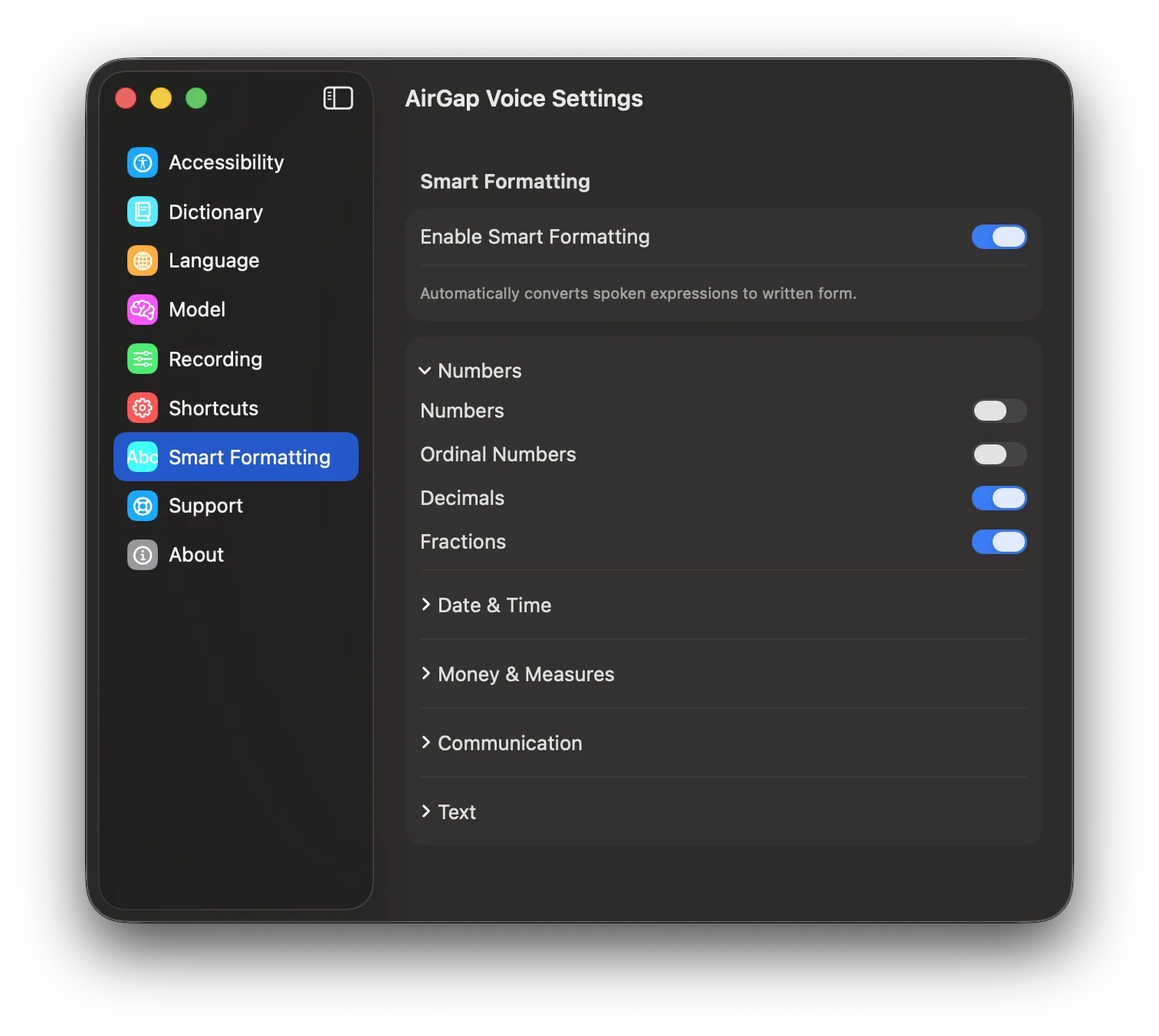
Smart Formatting automatically converts spoken expressions to written form. Enable or disable individual formatting categories to match your workflow.
Numbers
Converts spoken numbers, ordinals, decimals, and fractions to their written form (e.g., “twenty three” → “23”).
Date & Time
Formats spoken dates and times (e.g., “March fifteenth twenty twenty six” → “March 15, 2026”).
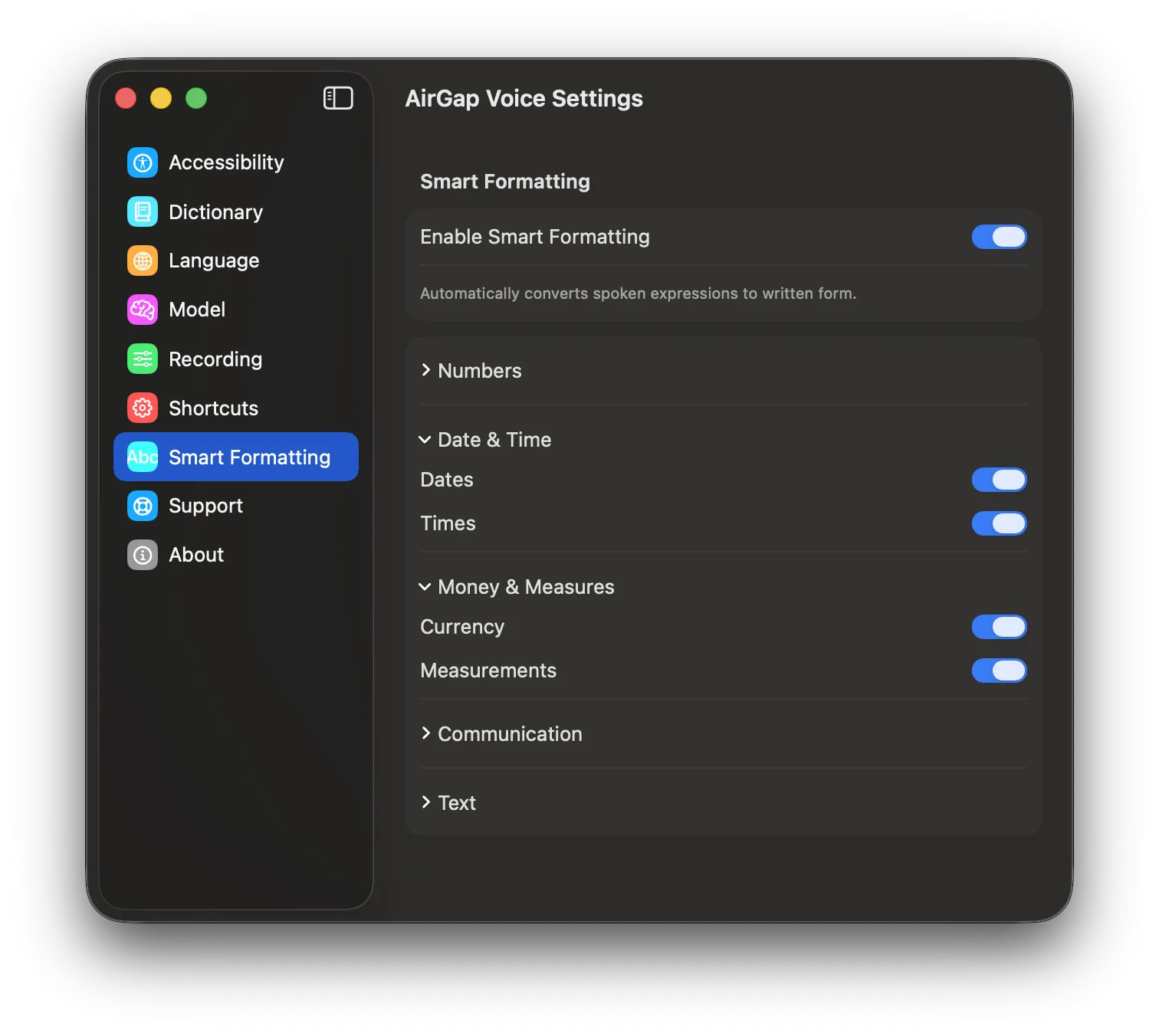
Money & Measures
Formats currency amounts and measurement units (e.g., “fifty dollars” → “$50”).
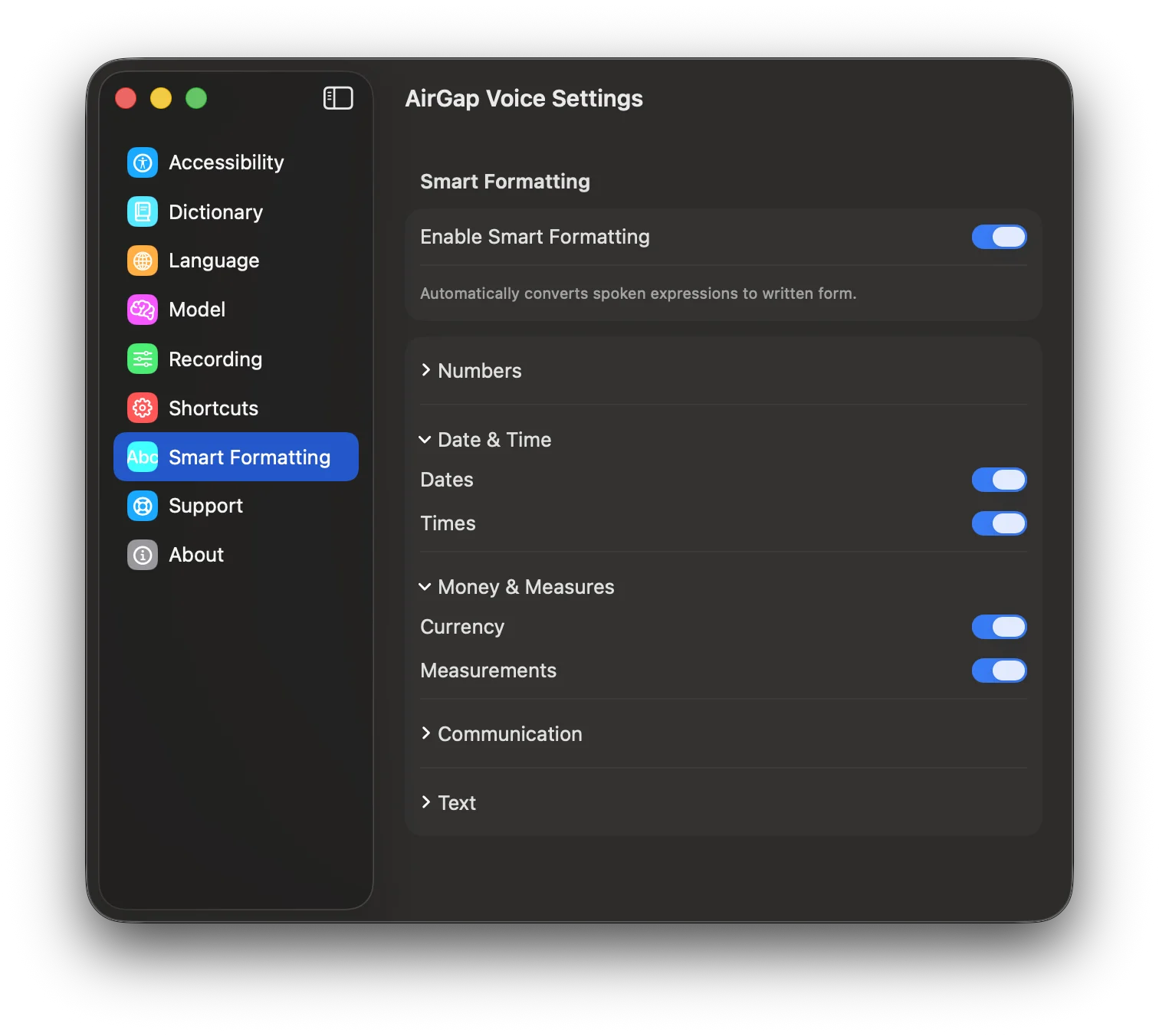
Communication
Formats phone numbers, email addresses, and URLs spoken naturally.
Text
Handles punctuation, abbreviations, word substitutions, and address formatting.
Support & Legal
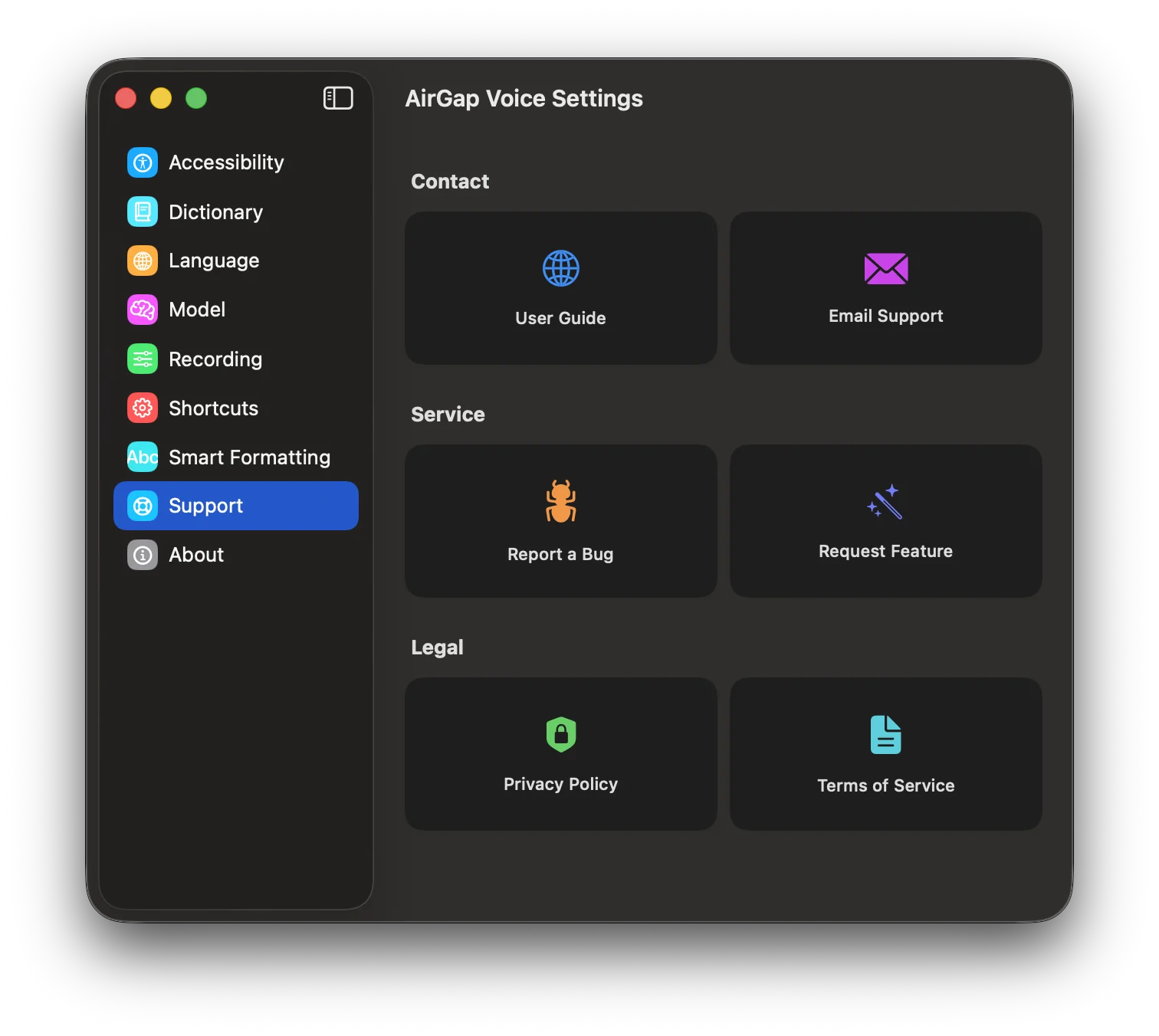
Access support resources, report bugs, request features, and view legal documents — all directly from the app’s Settings panel.
- User Guide — Opens this guide in your browser.
- Email Support — Opens your email client with a pre-filled support address.
- Report a Bug — Opens the bug report form on the website.
- Request Feature — Opens the feature request form on the website.
- Privacy Policy and Terms of Service — Opens the respective legal pages.
About
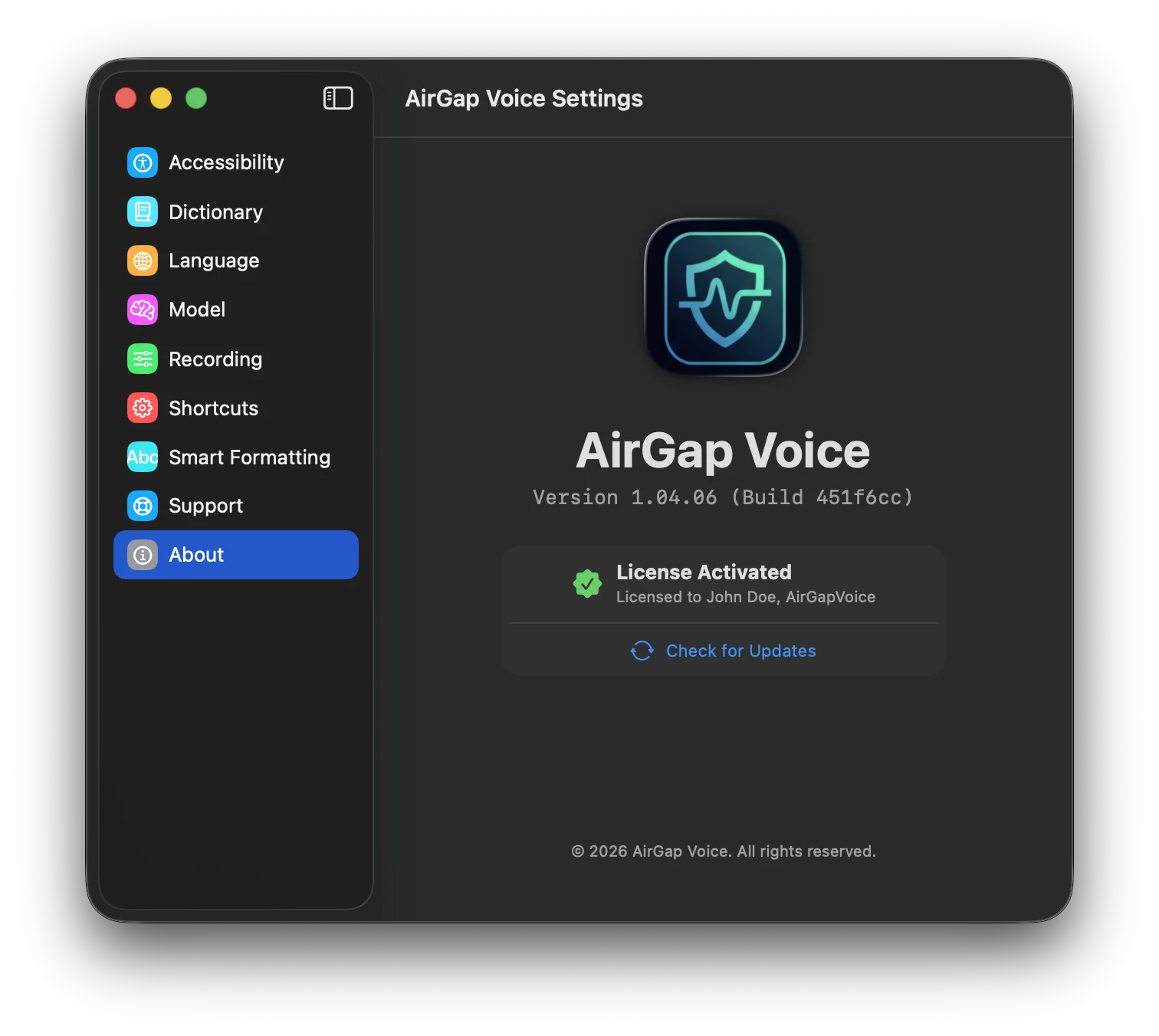
View the current app version, build number, license status, and check for updates.
- Version — Shows the installed version and build identifier.
- License Status — Shows whether the app is activated, in trial mode, or unlicensed.
- Check for Updates — Opens the update check page in your browser (the app itself makes no network connections).